- Install the app, then: tap the menu (three lines, top right) → Settings → Language → English.
- English search handles tourist sights, chains, and station names fine.
- When you request a route, the result includes a subway exit number — and this is the single most use…

Who this is for
- Anyone who set Naver Map to English and still can’t find the cafe from Instagram
- People who’ve stood on a Seoul corner while Google Maps refused to give a route
- Anyone wondering whether they need a Naver account at all
Naver Map works in English. You’ll still get stuck on search.
Switch the language and place names and stations all render in English. But small independent businesses never registered an English name, so typing one returns nothing. This is a database problem wearing the costume of a translation problem.
“So how do I actually find the place?” Here’s the thing: the fix lives in your workflow, not in settings. Copy the Korean name and paste it. That one habit removes almost all of the friction. Let’s get into it.
Table of Contents
- No Account Needed! Setup—Two Steps
- Paste the Korean Name and It Works! The Search Problem—and the Copy-Paste Fix
- Wrong Exit, Wrong Side of an Eight-Lane Road! Exit Numbers—the Detail That Saves You Daily
- It Replaces the Spreadsheet! Saved Lists as Your Itinerary
- No Offline Maps! Where Naver Map Falls Short
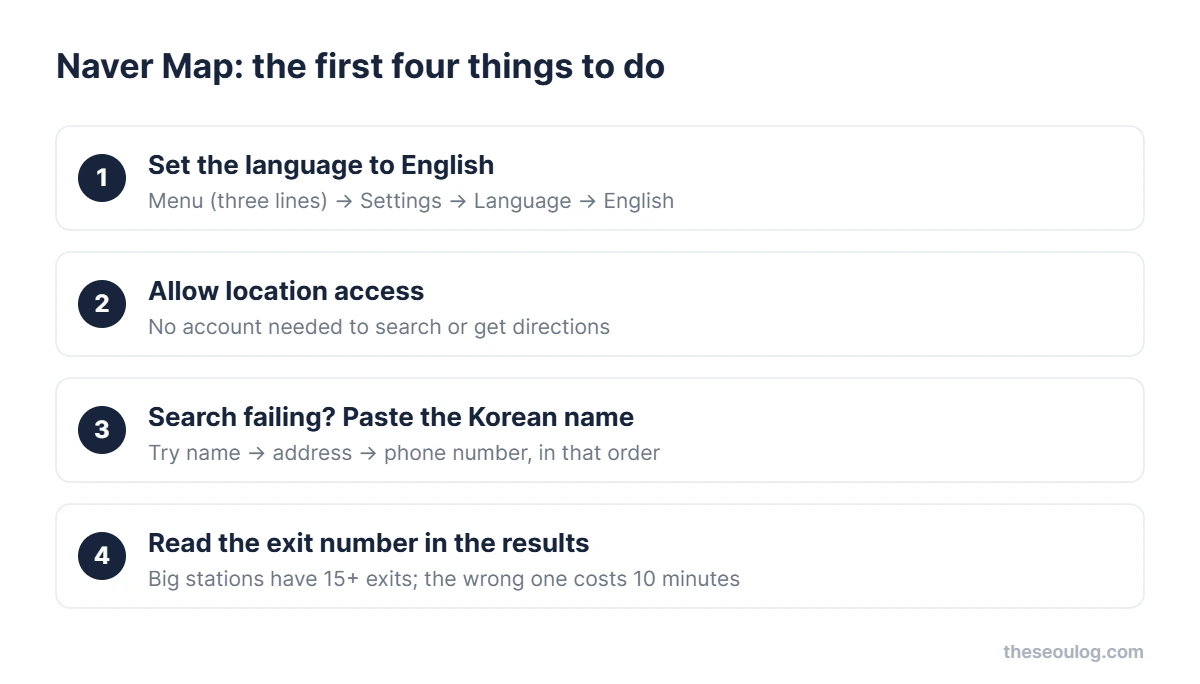
No Account Needed! Setup—Two Steps
✔ Install the app, then two taps
Menu (three lines, top right) → Settings → Language → English. Allow location access. Done—station names, streets, and menus switch to English.
You don’t need a Naver account to search and navigate. My advice: skip account creation unless you want the save/bookmark feature, in which case a quick Google-linked signup takes a minute.
✔ Got this far? Then this is your next move. “Kakao T Taxi in Seoul” is the step after.
Paste the Korean Name and It Works! The Search Problem—and the Copy-Paste Fix
| Common failure | Fix |
|---|---|
| Generic English terms return nothing | Search the exact business name — ideally in Korean |
| Interface stuck in Korean | Switch language in the app settings |
| Losing places you found | Star (save) every spot — navigate from your list later |
✔ English search handles sights, chains and stations fine
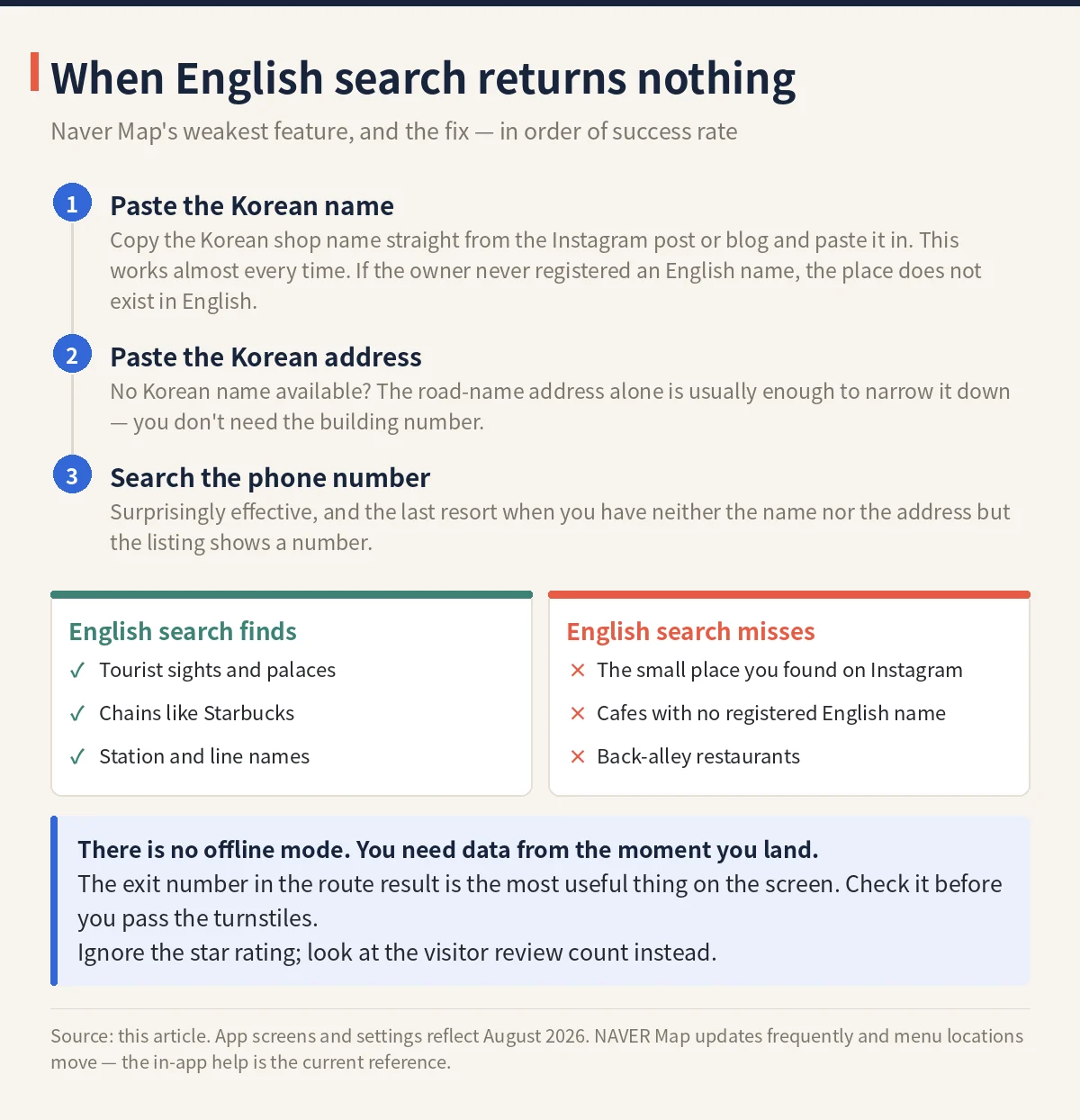
Where it fails: the small restaurants and cafes you found on Instagram or a blog. If the owner never registered an English name, English search returns nothing—the place exists, the index entry doesn’t.
The fix, in order of success rate:
- Copy the Korean name from the Instagram post or article and paste it into Naver Map. This works almost every time
- No Korean name available? Paste the Korean address
- Still nothing? Search the phone number — surprisingly effective
Make it a habit: every time you find a place you want to visit, grab its Korean name and save it to the app immediately. Do this from your couch before the trip and you’ll never search under pressure.

Wrong Exit, Wrong Side of an Eight-Lane Road! Exit Numbers—the Detail That Saves You Daily
✔ The single most useful piece of information on the screen
When you request a route, the result includes a subway exit number. Big Seoul stations have 10+ exits; picking the wrong one puts you on the wrong side of an eight-lane road in August heat.
Before leaving the turnstiles, glance at the route again and follow the yellow in-station signs to your exit number. Bus routes show live arrival countdowns, which makes the bus-vs-taxi decision easy.
It Replaces the Spreadsheet! Saved Lists as Your Itinerary
✔ The star (save) feature builds named lists
“Day 1,” “Cafes,” “Rainy day backup”—each shown as colored pins on the map. Standing anywhere in Seoul, you can instantly see the nearest place from your own wishlist. It quietly replaces the entire spreadsheet-itinerary genre, and you can share lists with travel companions.
It Tells You Which Train Car! Three Things It Does That Google Maps Never Could
✔ Once search stops fighting you, it gets interesting
Naver Map starts doing things no map app back home does.
- It tells you which train car to board. Open a subway route and it names the car and door — “board car 4, door 2” — so you come out of the transfer corridor at the right end. On a 12-minute transfer at Wangsimni that’s not a nicety, it’s the whole difference.
- Street view that predates your trip. Drop into road view at the destination before you leave the hotel and you’ll recognise the actual shopfront. Half of Seoul’s good restaurants are on the second or third floor with a sign you’d walk past twice.
- Live bus arrivals, down to the stop. Not a timetable — the actual bus, actually approaching. It’s why locals will wait for a bus rather than descend into the subway.
One dependency worth stating plainly: none of this works offline. Naver Map has no usable offline mode, so you need data from the moment you land — see the eSIM, SIM and pocket WiFi comparison for which option fits your trip. And if you’re still hoping to get by with Google, here’s exactly what it can and can’t do in Korea.
No Offline Maps! Where Naver Map Falls Short
- No offline maps. Without data the app is nearly useless — this is why the eSIM matters
- Walking GPS drifts in narrow alleys between tall buildings
- Some English labels are machine-translated and read oddly, though meaning survives
- Ratings work differently: ignore the star score, look at visitor review counts instead
My working setup after years here: Naver Map for routes and saves, Instagram for checking what a place looks like, Kakao T for taxis. Three apps, zero navigation problems.
“Multilingual support” means the interface was translated. It rarely means the content was. In travel apps, that gap is the whole experience. Paste one Korean name tonight and see!
Frequently asked questions
Does Naver Map work in English?
Yes. Open the menu (three lines, top right) → Settings → Language and choose English. Place names, station names and the interface all switch over. Search and directions work without an account.
Why can I not find restaurants when I search in English?
Because English search is Naver Map’s weakest feature — small independent places simply have no English name registered. The fix is three-tiered: copy the Korean name from Instagram or a review and paste it in; if you do not have the name, search the Korean address; failing that, search the phone number, which works surprisingly well. Get into the habit of pasting Korean names and search stops being a problem.
Do I need a Naver account?
Not for directions. Create one only if you want the saved-places feature to build an itinerary — you can link a Google account in a few seconds. Search and routing work fine logged out.
What is the single most useful detail in a route result?
The subway exit number. Seoul stations routinely have more than ten exits, and picking the wrong one means ten minutes of walking above ground. The route result always names the exit, so glance at the screen again once you are in the station.
What does Naver Map do that Google Maps cannot?
Three things. It tells you which train car and door to board so you emerge at the right end of a transfer corridor. Its street view lets you check a doorway before you leave the hotel, which matters because good Seoul restaurants are often on the second or third floor. And it shows buses in real time — actual approaching vehicles, not a timetable.
What are its weaknesses?
There is no usable offline mode, so you need mobile data from the moment you land. Walking navigation drifts in narrow alleys between tall buildings, and the review culture differs from Google — the number of visitor reviews tells you more than the score.
How do I switch Naver Map to English?
In the app, tap the menu icon (three lines) next to the search bar, open the settings gear, choose Language and select English; the app restarts in English. The desktop website at map.naver.com has no language setting at all, so for planning on a computer use your browser’s translate function or do it in the app. Even in English, searches work best when you paste the Korean name of the place.
This article is based on the official information below. Rules can change, so please check the original before you travel.
· KORAIL (Korea Railroad) official site
Information as of 2026-08-20 (official listings and Google Maps as shown at publication). Updated when things change.